Kali Linux Setup for CTF
Detailed Kali Linux hard-disk installation walkthrough with screenshots, partitioning choices, encryption notes, and post-install CTF setup.
Kali Linux Hard-Disk Install for CTF
This is an original, step-by-step hard-disk install guide for Kali Linux, based on the official install flow and adapted for CTF usage.
It focuses on:
- Single-boot install on bare metal or VM disk
- Optional full-disk encryption (LVM)
- Stable defaults for beginners
- Post-install setup for CTF tooling
Official Reference
For the canonical installer docs and latest screenshots, see the official Kali page: Installing Kali Linux (Hard Disk)
Installation Flow

Requirements and Preparation
Minimum Practical Specs
- CPU: amd64 (x86_64)
- RAM:
- 512 MB minimum for CLI-only
- 2 GB recommended for desktop install
- 8 GB recommended if you use Burp, browser, Ghidra, and debugger simultaneously
- Disk:
- 2 GB for minimal CLI install
- 20+ GB recommended for desktop + common CTF tooling
Download the Correct Image
Use the Installer image from Get Kali.
Verify the ISO (Recommended)
# Linux/macOS
sha256sum kali-linux-*.iso
# Windows PowerShell
Get-FileHash .\kali-linux-*.iso -Algorithm SHA256Compare the hash with Kali's published checksum.
Full Installer Walkthrough
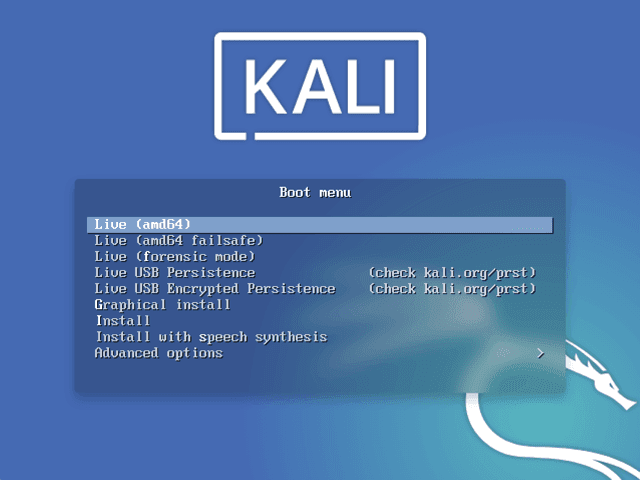
1) Boot the Installer
Start from the USB and pick Graphical install.
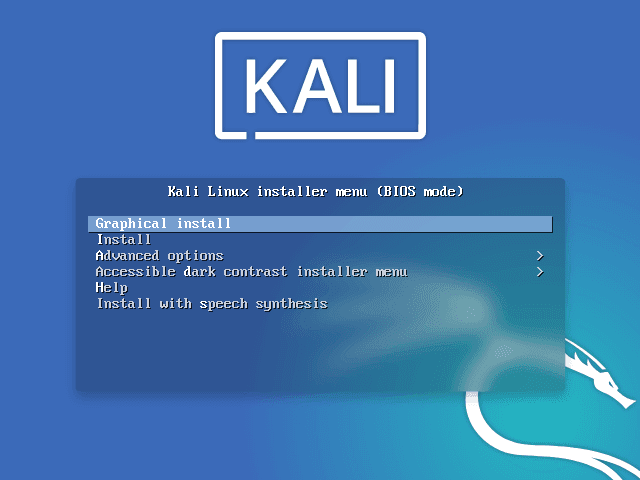
If you used a Live ISO, you may also see Live boot entries.
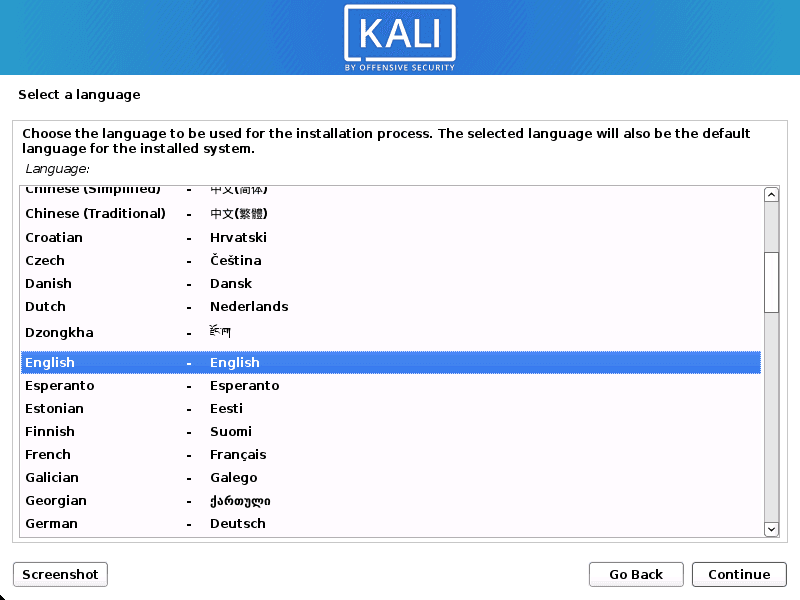
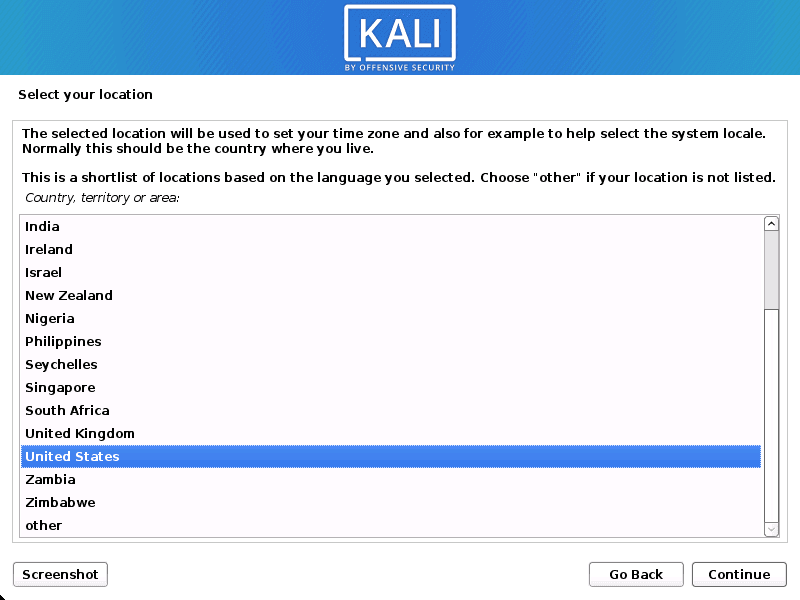
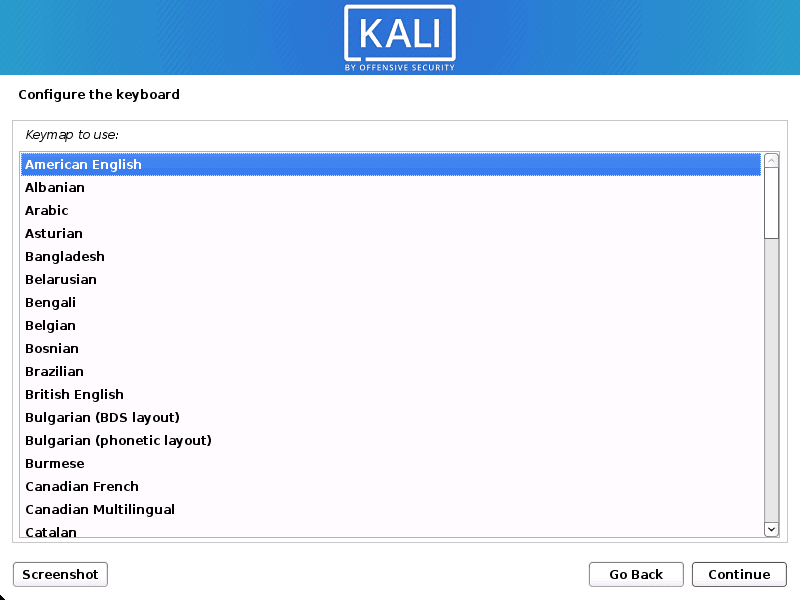
3) Network, Hostname, Domain
Installer will try DHCP automatically.
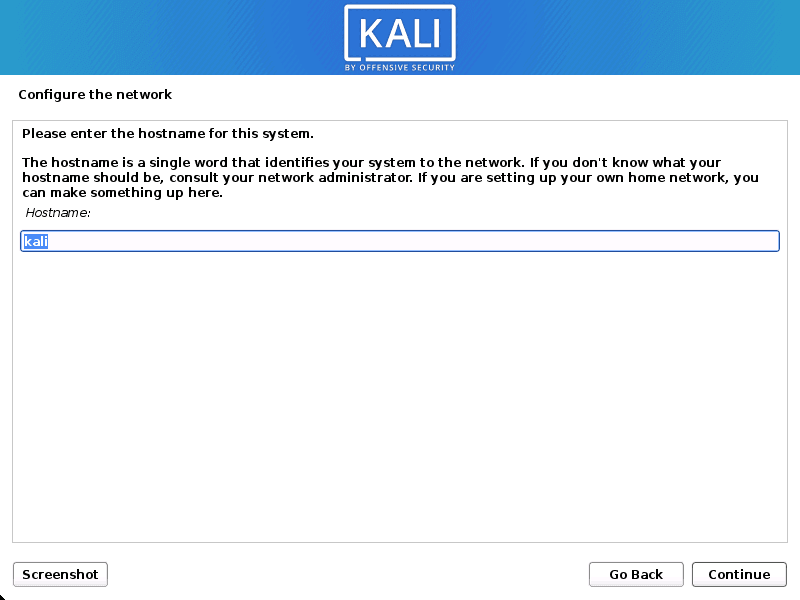
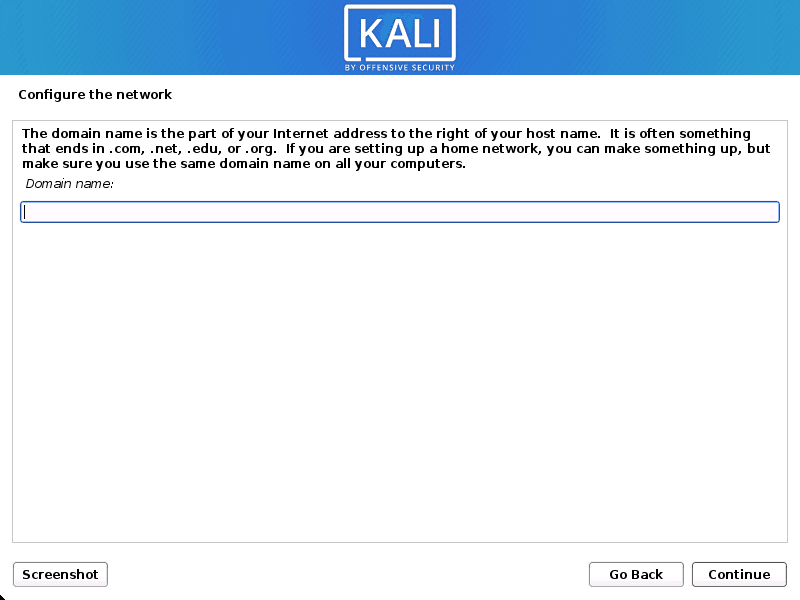
Suggested values for CTF use:
- Hostname:
kali-ctf - Domain: leave blank unless you need one
If no DHCP is available:
- Configure static IP manually
- Or continue without network and configure later
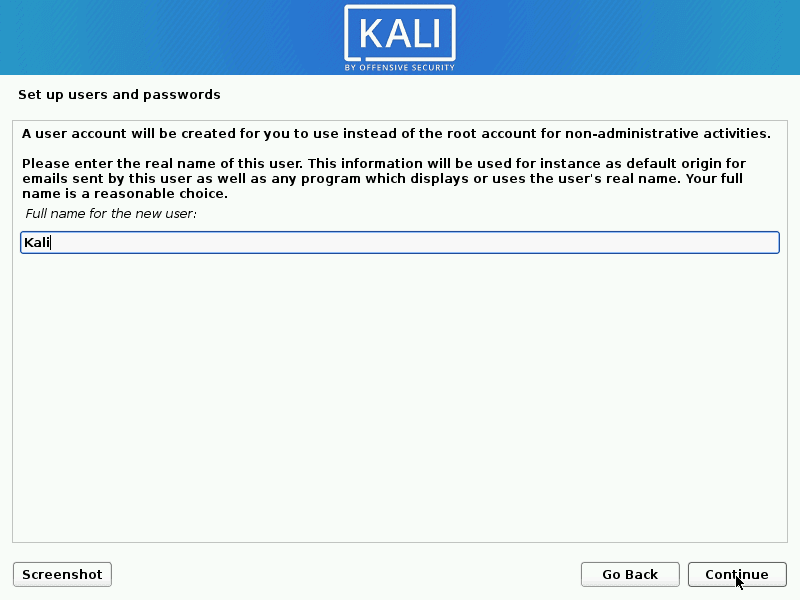
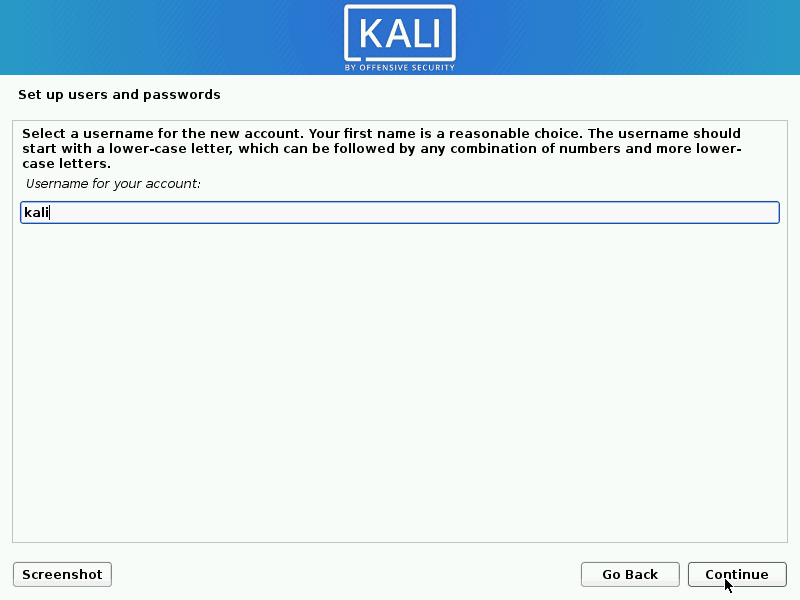
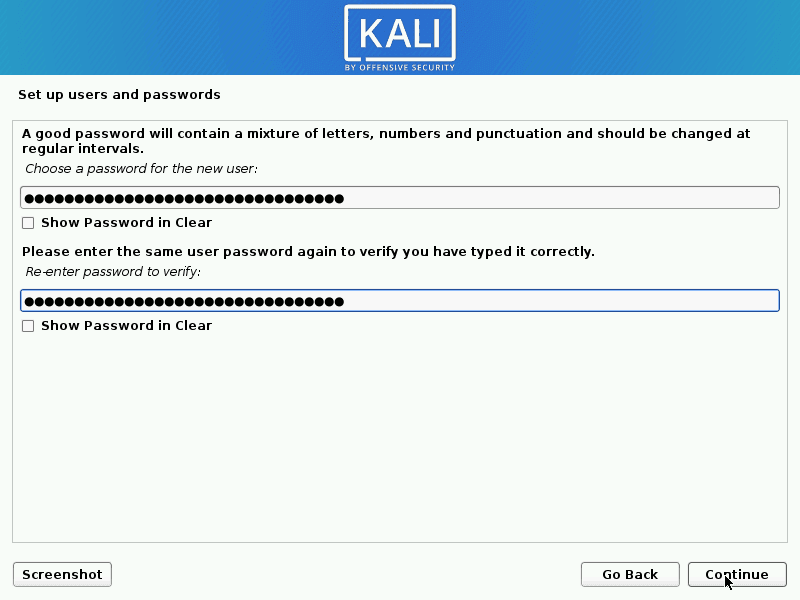
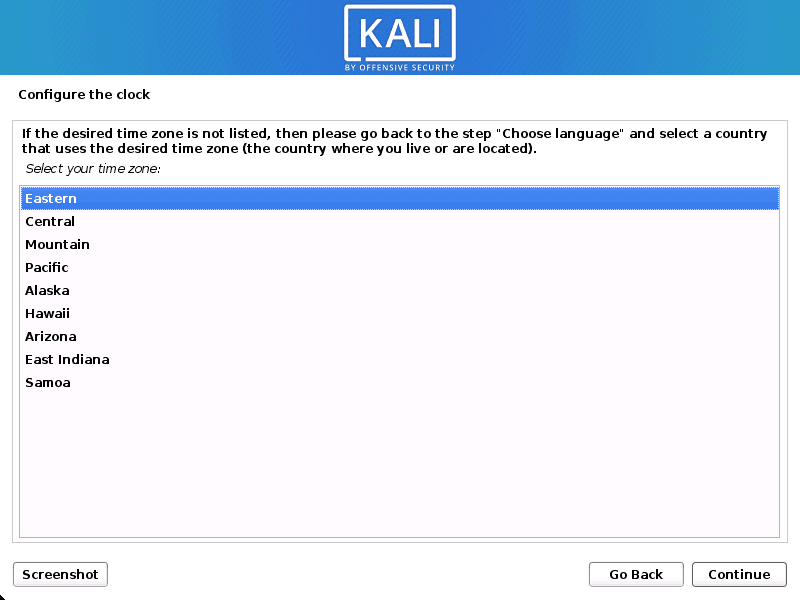
6) Partitioning (Important)
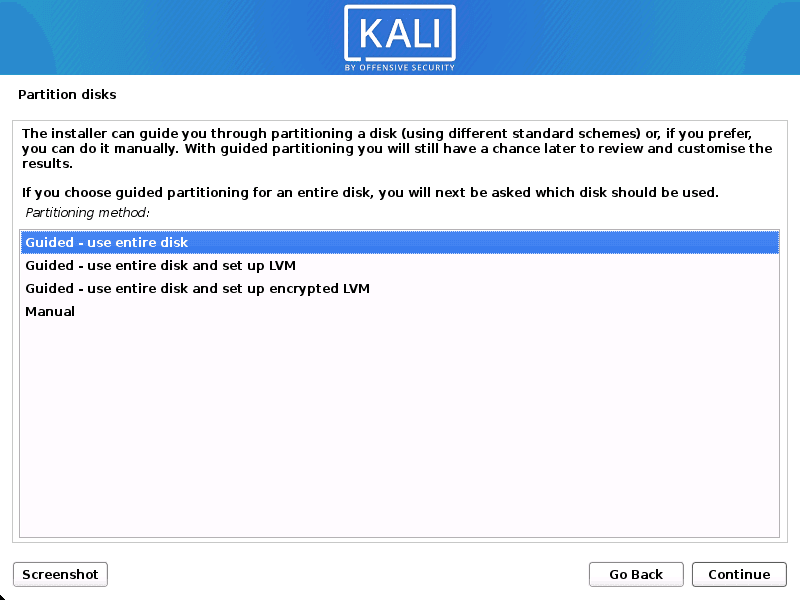
For beginner single-boot installs, choose:
- Guided - use entire disk
For encrypted install:
- Guided - use entire disk and set up encrypted LVM
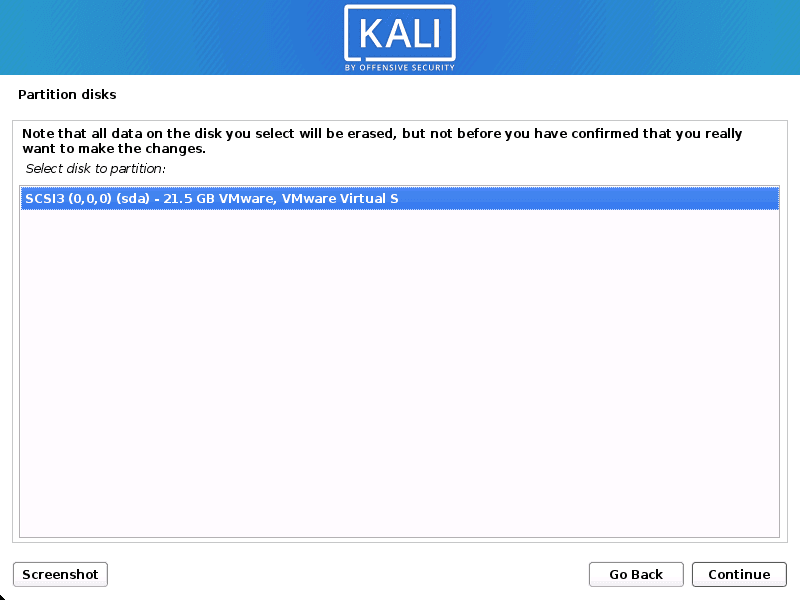
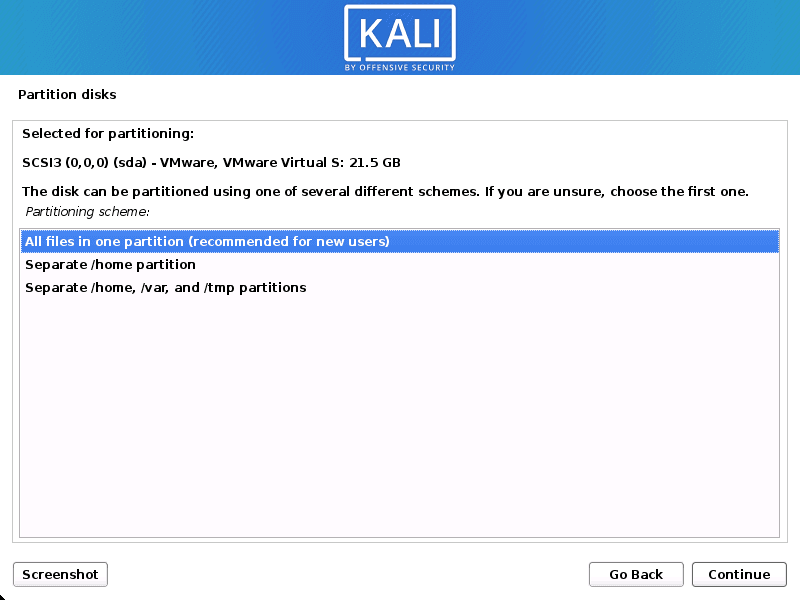
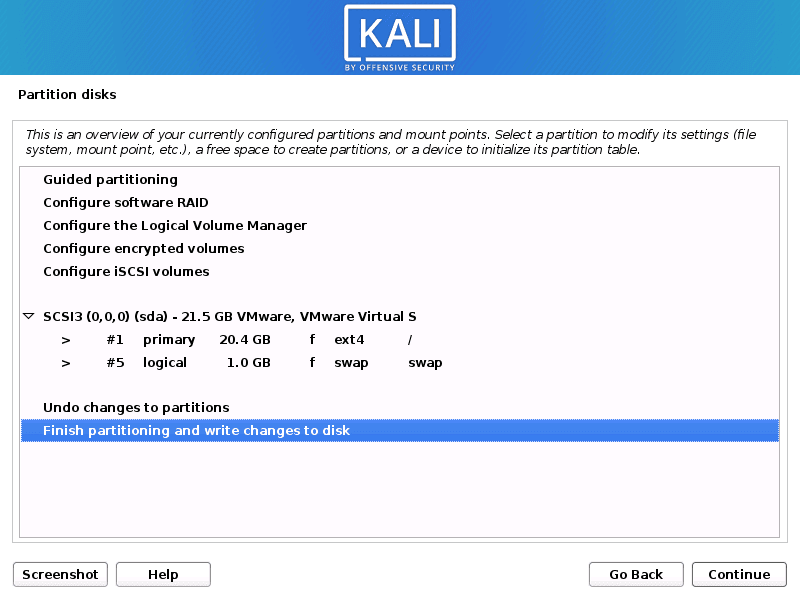
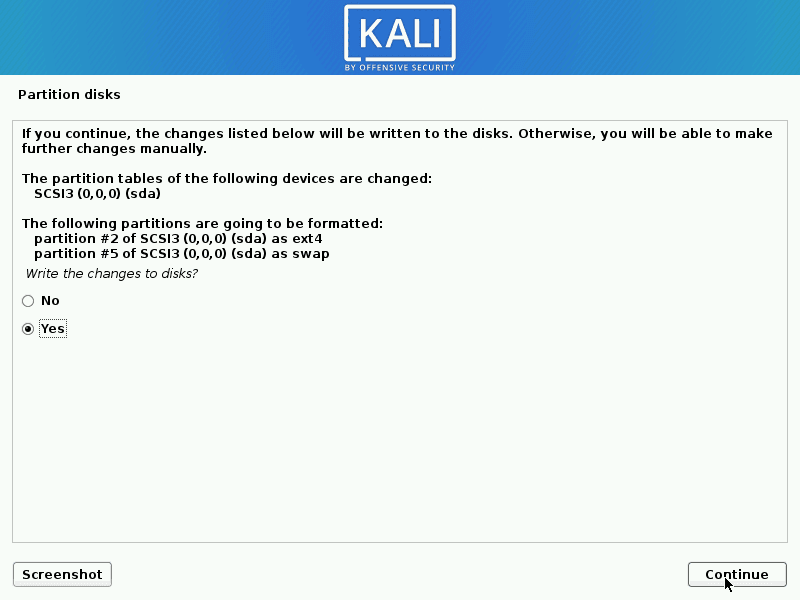
Recommended for most users:
- "All files in one partition"
7) Optional Encrypted LVM Notes
If encrypted LVM is selected:
- Installer may offer secure wipe before encryption
- Wipe can take a long time on large disks
- You will set an unlock passphrase used at each boot
Use a strong passphrase and keep a backup in a secure password manager.
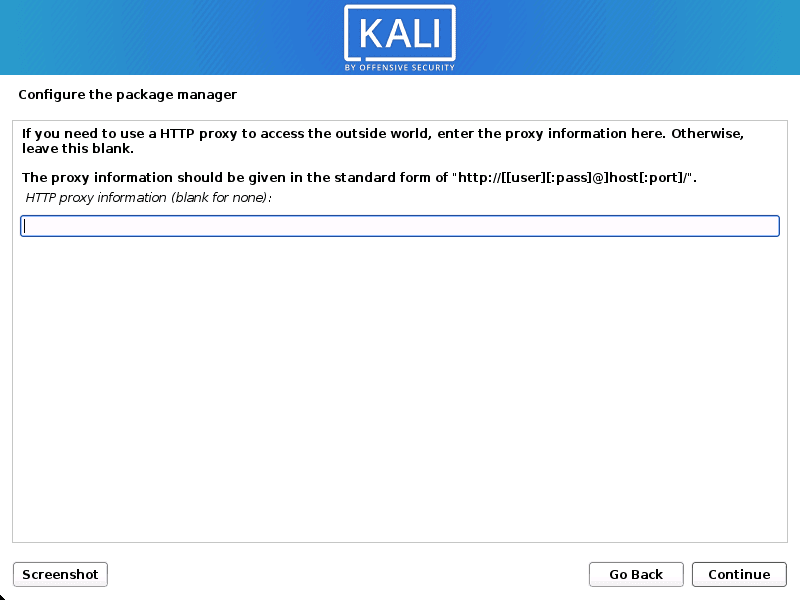
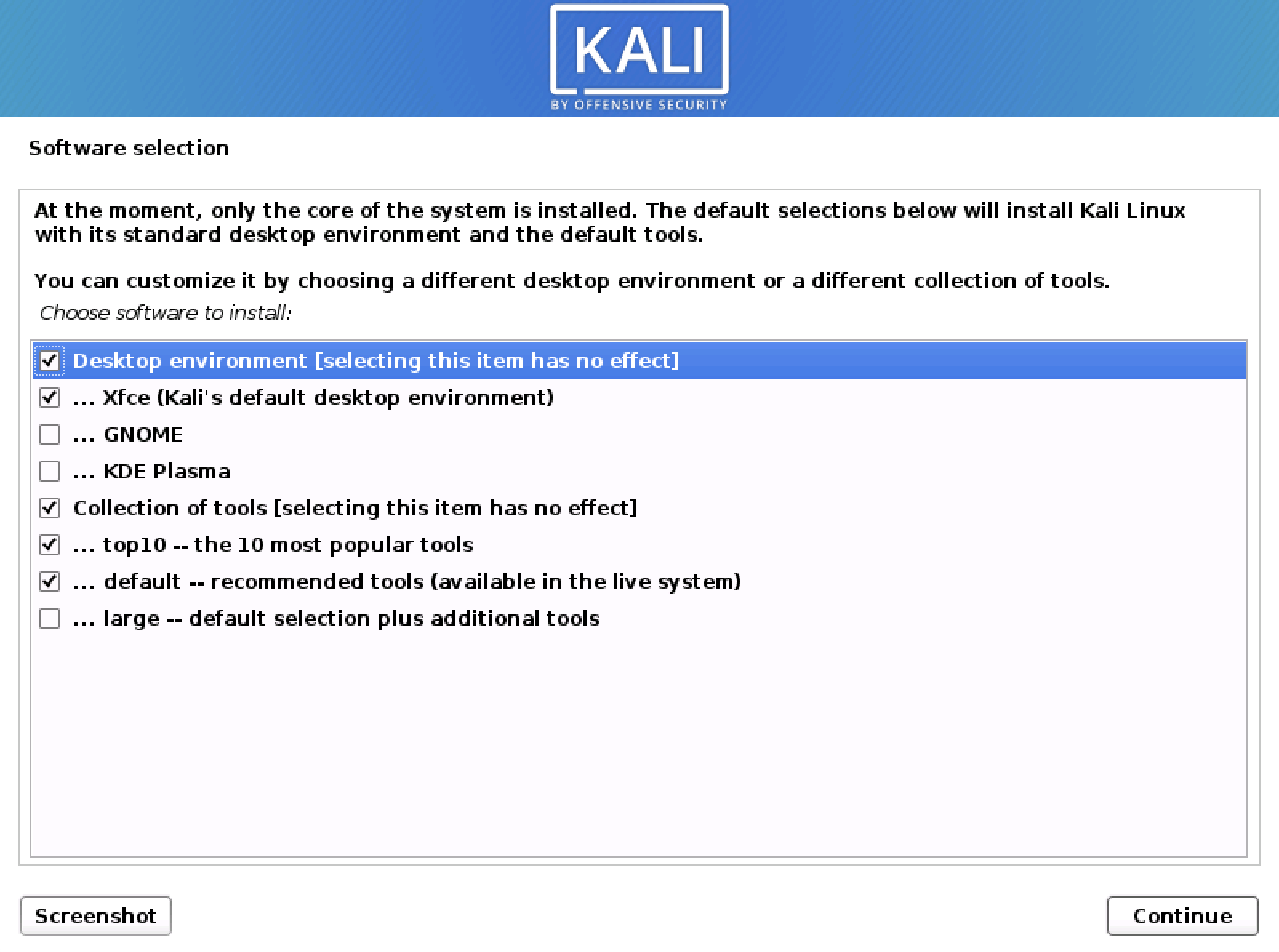
8) Proxy and Package Selection
Enter proxy details only if your network requires it.
Keep default metapackage choices if you are unsure.
Partitioning Strategy Cheatsheet
| Scenario | Best Choice | Notes |
|---|---|---|
| New machine, Kali only | Guided - entire disk | Fastest and simplest |
| Need disk encryption | Guided encrypted LVM | Strong privacy for laptop use |
| Dual boot with existing OS | Guided largest free space or Manual | Back up first |
| Advanced custom layout | Manual | For separate /home, custom filesystems, etc. |
First Boot After Installation
Run these immediately:
sudo apt update
sudo apt full-upgrade -y
sudo apt autoremove -y
Install practical CTF essentials:
sudo apt install -y kali-tools-top10 tmux seclists
pip3 install --break-system-packages pwntools pycryptodome gmpy2 z3-solver
Unpack rockyou wordlist:
sudo gzip -d /usr/share/wordlists/rockyou.txt.gzCTF Quality-of-Life Setup
Add aliases:
cat >> ~/.zshrc << 'EOF'
alias ctf='mkdir -p ~/ctf && cd ~/ctf'
alias ports='ss -tulpen'
alias py='python3'
alias cs='checksec --file'
EOF
source ~/.zshrc
Quick validation:
python3 -c "from pwn import *; print('pwntools OK')"
gdb -q -ex quit && echo "gdb OK"
Final Checklist
- Installer ISO hash verified
- Booted in intended mode (UEFI or BIOS)
- Correct disk selected for partitioning
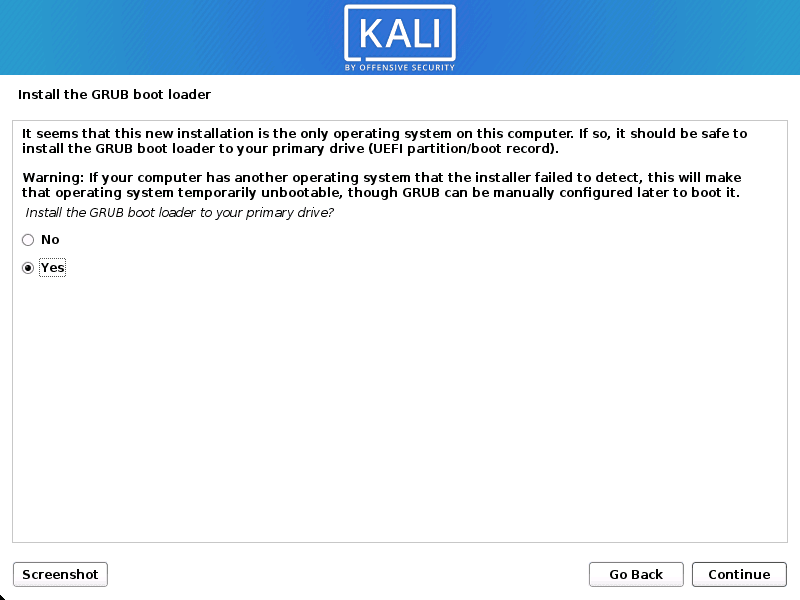
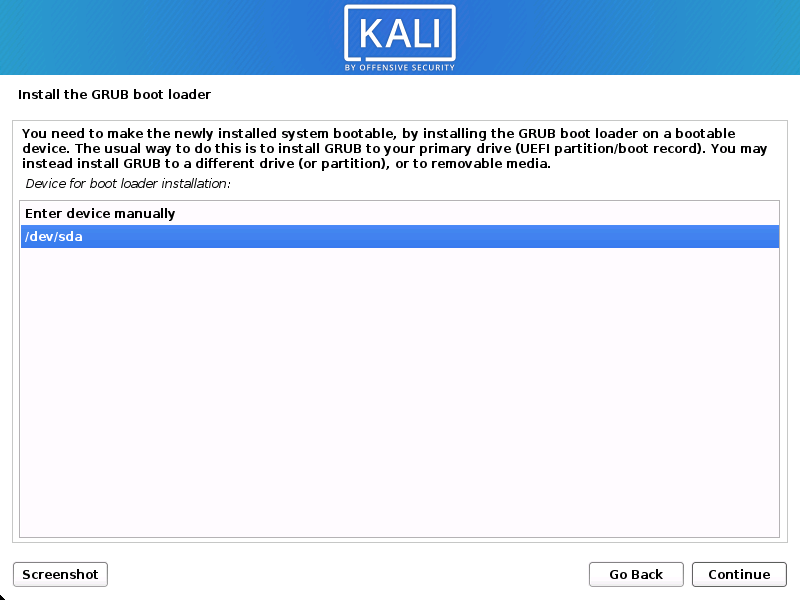
- GRUB installed to correct drive
- System fully upgraded after first boot
- CTF tools validated (pwntools, gdb, wordlists)
Next Step
Continue with Setting Up Your Environment and CTF Platforms to prepare your first competition workflow.
Last updated on