Wireshark
Use Wireshark and tshark for CTF network forensics - filtering, following streams, and extracting files from PCAPs.
Wireshark
Wireshark is the standard GUI PCAP analyzer. tshark is the CLI equivalent - essential for scripting and quick extraction. CTF network challenges almost always involve one of them.
Visual Guide
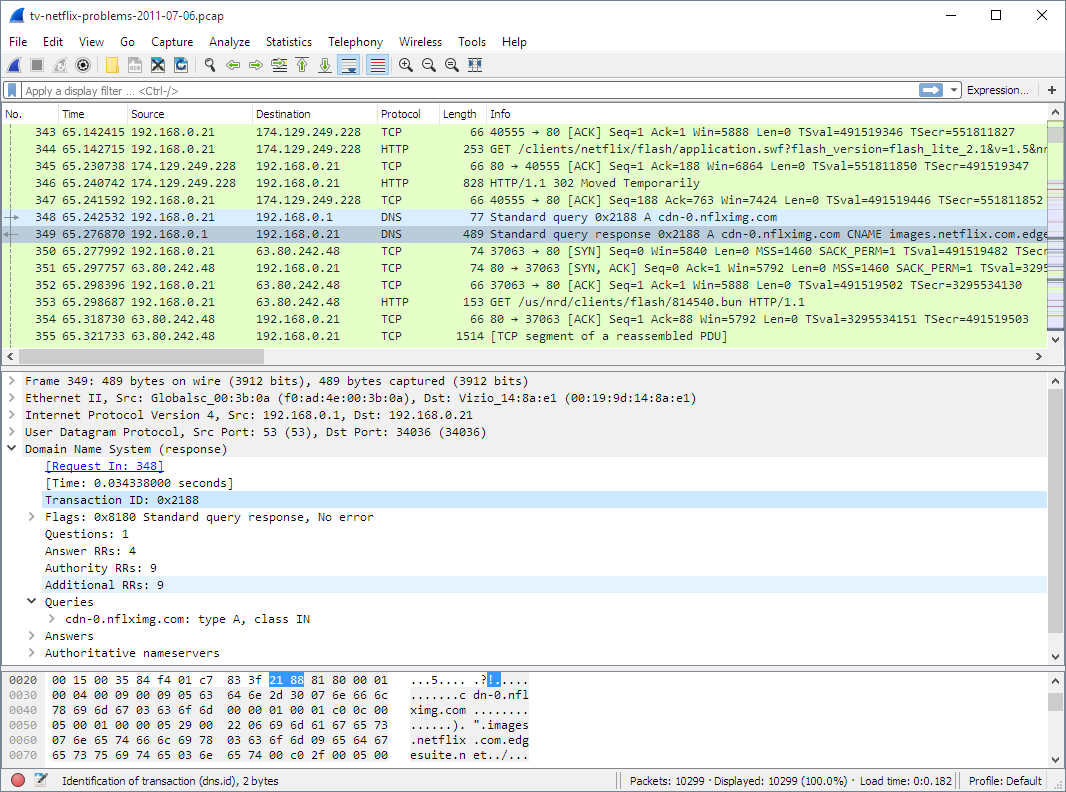
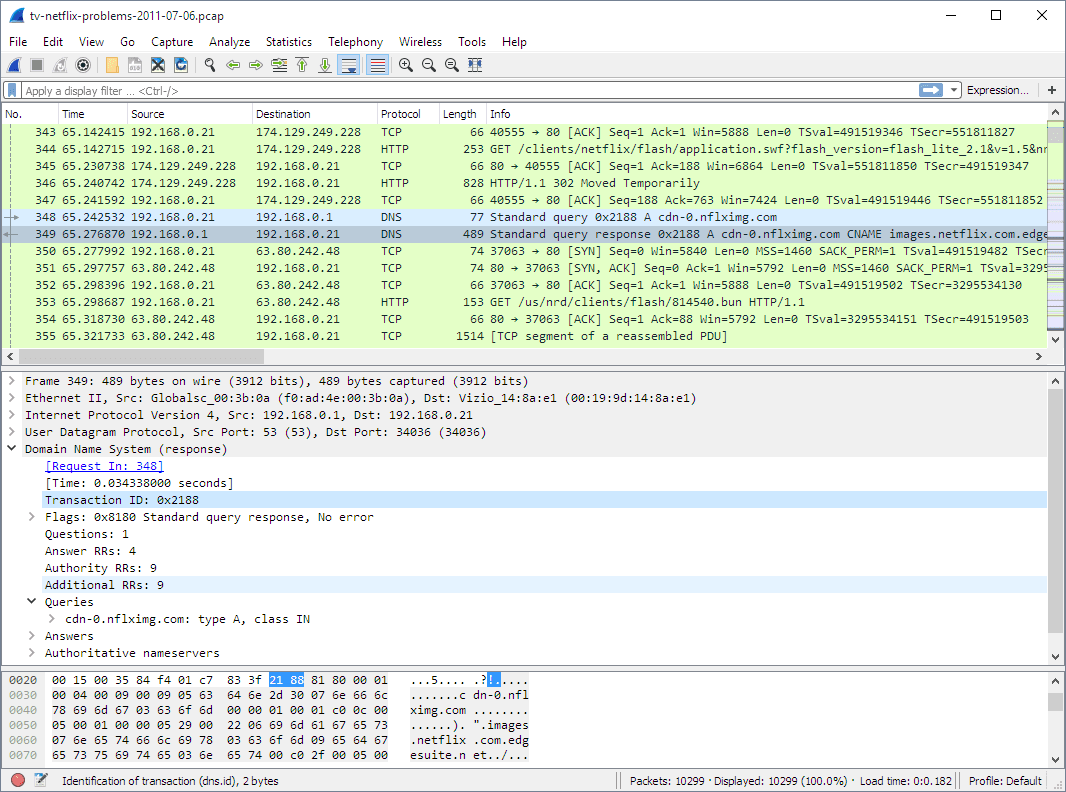
Official main window figure showing the packet list, packet details, and bytes panes used for first-pass analysis.
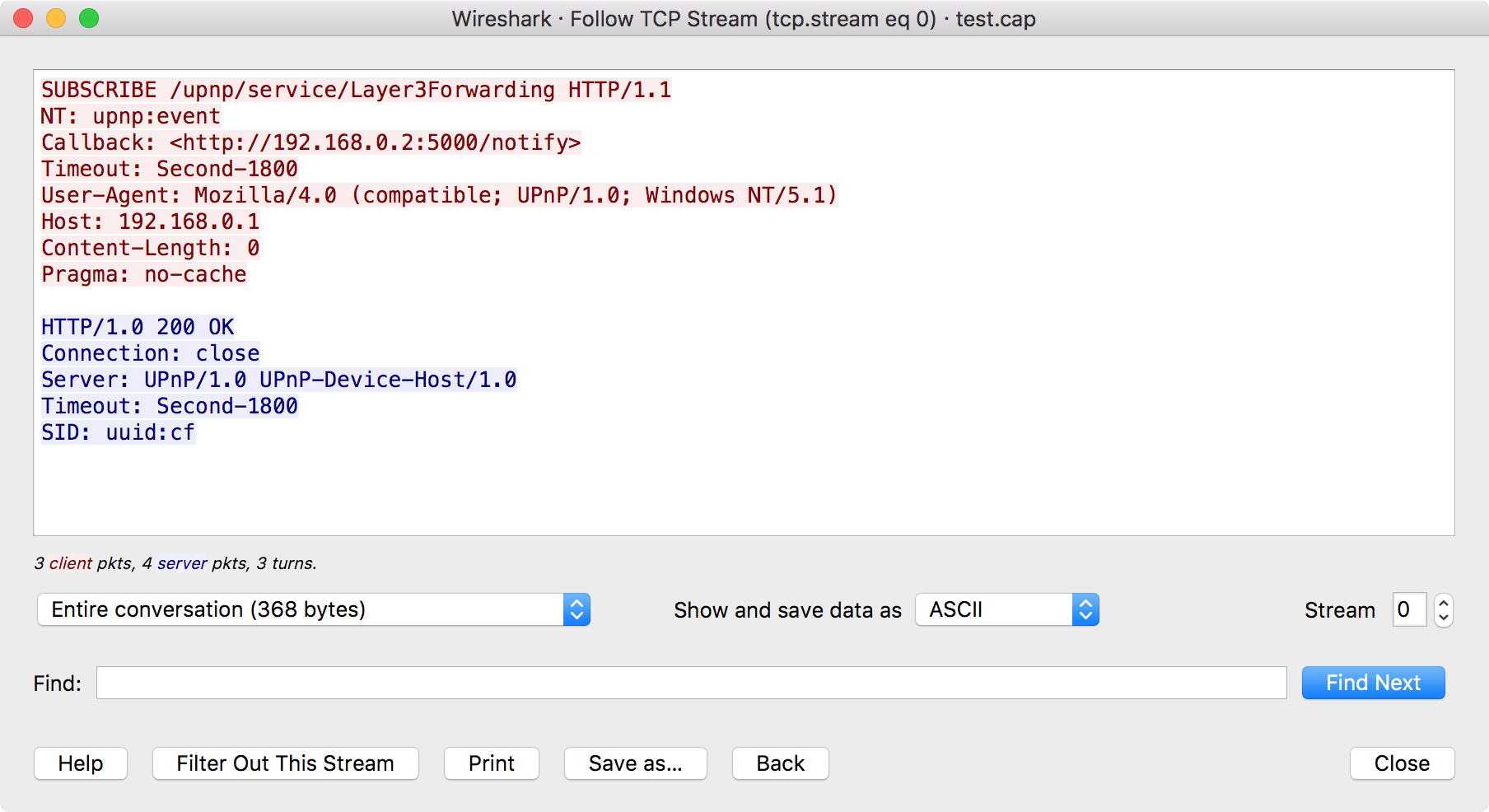
Official follow-stream dialog for reconstructing plaintext conversations and spotting credentials or flag data.
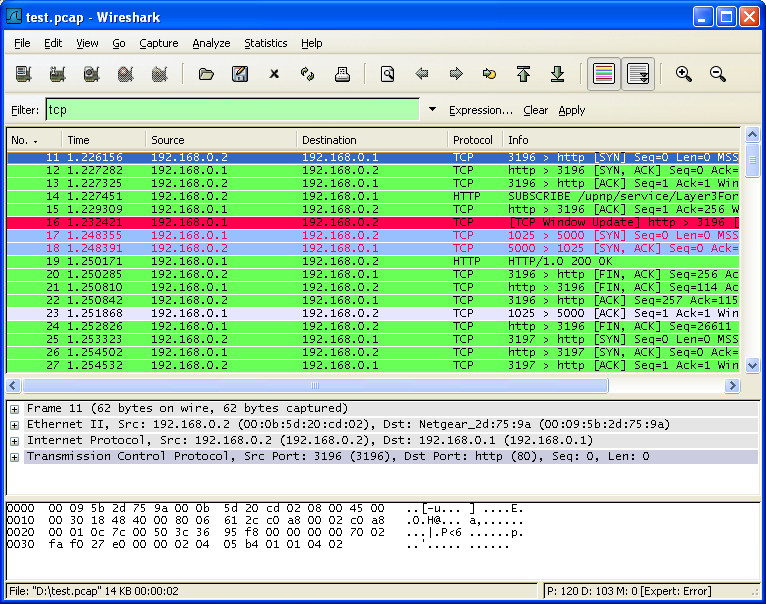
Official display-filter example showing how quickly you can isolate TCP traffic in a large capture.
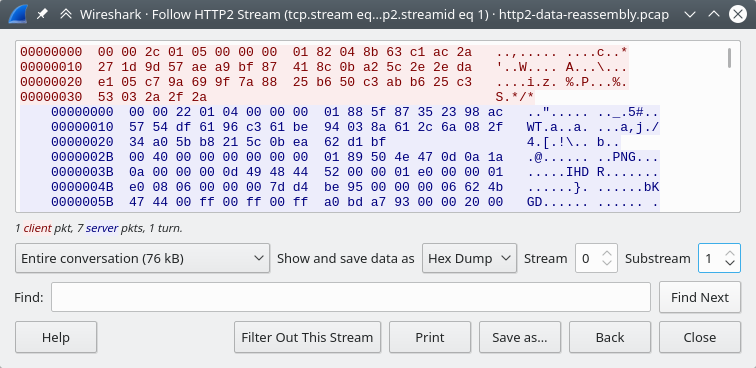
Official follow-HTTP/2 example for modern web captures where the stream view is still the fastest way to recover content.
Investigation Workflow

Investigation Steps
Open and get an overview
wireshark capture.pcap
# Or CLI:
tshark -r capture.pcap -q -z io,phs   # Protocol Hierarchy Statistics
Check which protocols dominate - HTTP, DNS, FTP, ICMP, custom ports.
Find interesting traffic
tshark -r capture.pcap -q -z conv,tcp  # TCP conversations summary
tshark -r capture.pcap -Y 'http'       # show only HTTP
tshark -r capture.pcap -Y 'dns'        # show only DNS
In GUI: Statistics → Protocol Hierarchy and Statistics → Conversations.
Follow a stream
In Wireshark: right-click any packet → Follow → TCP Stream (or UDP Stream).
# CLI equivalent:
tshark -r capture.pcap -q -z follow,tcp,ascii,0
# Replace 0 with stream index
Export objects
File → Export Objects → HTTP (or IMF for email, SMB for file shares).
# CLI extraction:
tshark -r capture.pcap --export-objects http,./extracted/
Search for the flag
tshark -r capture.pcap -Y 'frame contains "flag{"'
tshark -r capture.pcap -Y 'frame contains "CTF{"'

# In GUI: Ctrl+F → String → search "flag{"
Official reference figures: main window, follow stream, and display filters.
GUI vs tshark
Best for: visual exploration, following streams, exporting objects, decryption.
Key menu items:
- Statistics → Protocol Hierarchy - what's in the capture
- Statistics → Conversations - top talkers
- File → Export Objects - extract HTTP/FTP files
- Edit → Find Packet (Ctrl+F) - search for strings
- Analyze → Decode As - force protocol interpretation
Essential display filters:
http                     HTTP traffic only
dns                      DNS queries/responses
tcp.port == 4444         specific port
ip.addr == 10.0.0.1      specific host
http.request.method == "POST"
frame contains "flag"    string search
Common GUI Actions
Open a capture
Use File → Open and load the PCAP. If the file is large, let Wireshark finish indexing before filtering aggressively.
Apply a filter
Type a display filter like http, dns, tcp.port == 80, or frame contains "flag" and press Enter.
Follow the stream
Right-click a packet and choose Follow → TCP Stream or UDP Stream to reconstruct the conversation.
Export what matters
Use File → Export Objects to pull out HTTP files, then inspect them with binwalk, strings, or CyberChef.
CTF Scenarios
Display Filter Cheatsheet
# Protocol filters
http / dns / ftp / ssh / smtp / tcp / udp / icmp

# Address filters
ip.addr == 192.168.1.1
ip.src == 10.0.0.1
ip.dst == 10.0.0.2

# Port filters
tcp.port == 80
tcp.dstport == 443
udp.port == 53

# Content filters
frame contains "flag"
tcp contains "password"
http.request.uri contains "admin"

# Combinations
http && ip.src == 10.0.0.5
dns || icmp
!(arp || broadcast)

# Useful extras
tcp.flags.syn == 1 && tcp.flags.ack == 0
tls.handshake.type == 1
frame contains "CTF{"
data-text-lines contains "password"
tshark Cheatsheet
tshark -r cap.pcap                             # print packets
tshark -r cap.pcap -q -z io,phs                # protocol hierarchy
tshark -r cap.pcap -q -z conv,tcp              # TCP conversations
tshark -r cap.pcap -q -z endpoints,ip          # IP endpoints
tshark -r cap.pcap -Y 'dns'                    # DNS only
tshark -r cap.pcap -Y 'http.request'           # HTTP requests only
tshark -r cap.pcap -T fields -e ip.src -e ip.dst
tshark -r cap.pcap -T fields -e http.host -e http.request.uri
Checklist
- Protocol Hierarchy - understand what's in the capture first
- Follow TCP/UDP Stream - read conversations in full
- Export Objects (HTTP) - extract transferred files
- Search
frame contains "flag{"- direct flag search - Check DNS for exfiltration (long subdomains, base64 chunks)
- FTP/SMTP/HTTP - plaintext protocols always visible
- TLS - need key log file or server private key
Last updated on